How to set up appointment booking that plugs into your walk-in queue
A step-by-step guide to turning on appointment booking in filaro for a barbershop, salon, or clinic, with services, staff photos, per-person hours, and time off. Bookings and walk-ins end up in one queue.

Some customers like to just show up. Others want a time in the book. For a long time I made mine pick one, because juggling a paper appointment diary and a walk-in list at the same time was more than I could do on a busy Saturday.
The whole point of appointments in filaro is that you don't have to choose. Customers can book a slot in advance or walk in, and both end up in the same live queue. This guide walks through the setup, start to finish, with a screenshot of every step. It takes about ten minutes.
Step 1: Turn on appointments and set your booking hours
Open Settings and find the Appointments section. Tick Accept online appointments, then set the hours you take bookings for each day. These are separate from whether the walk-in queue is open, so you can, say, take appointments 9 to 6 on weekdays and a shorter Saturday.
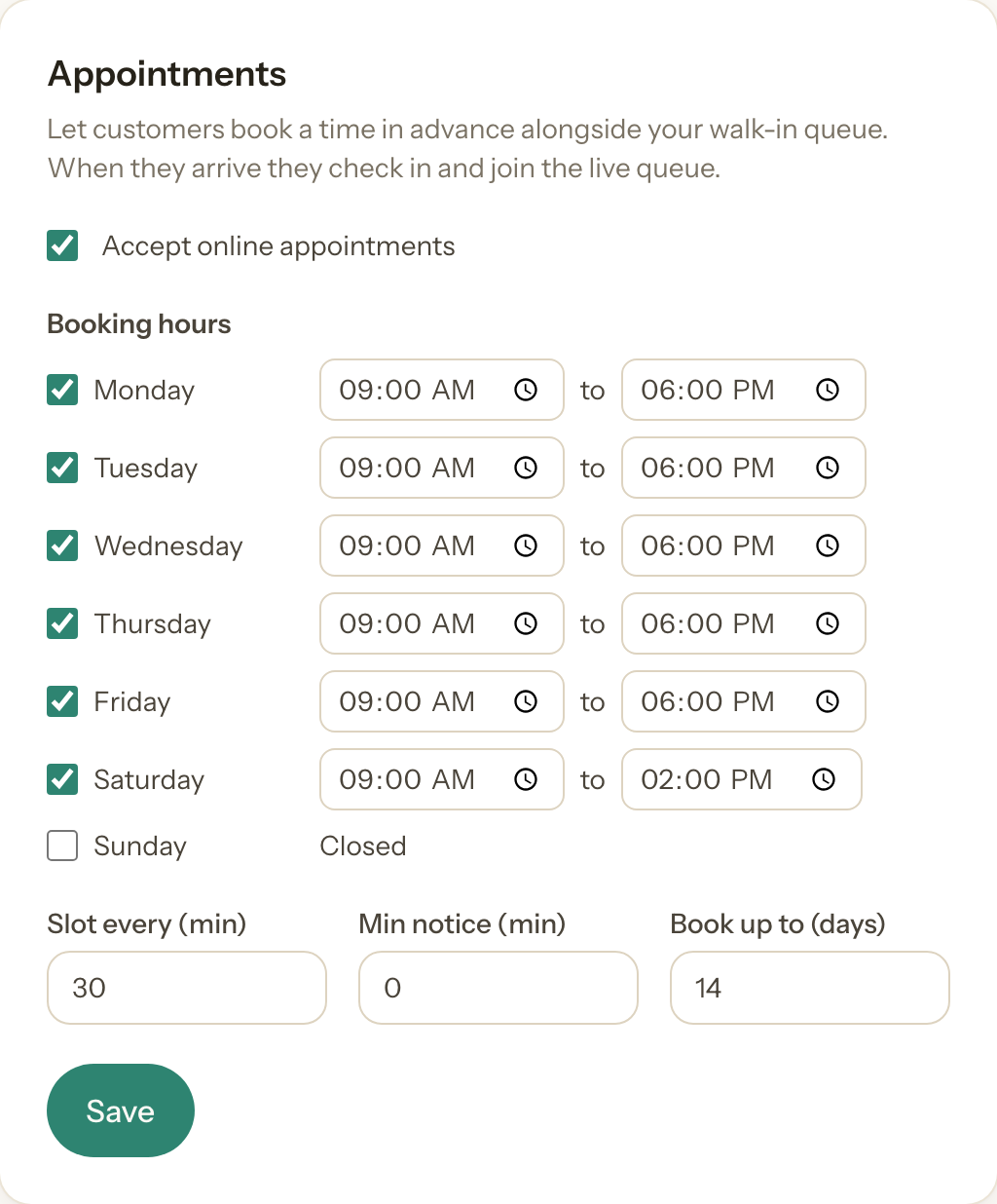
Three small settings sit underneath:
- Slot every is how often a start time can begin (every 30 minutes here).
- Min notice is how far ahead someone must book. Set it to 60 or 120 minutes so nobody books the slot you're standing in.
- Book up to is how far into the future the calendar opens.
Hit Save and you're taking bookings.
Step 2: Add your services
Still in Settings, add what people can book under Services. Each service has a name and a duration, and the duration is what sets the length of the appointment. A haircut might be 30 minutes, a cut and beard 45.
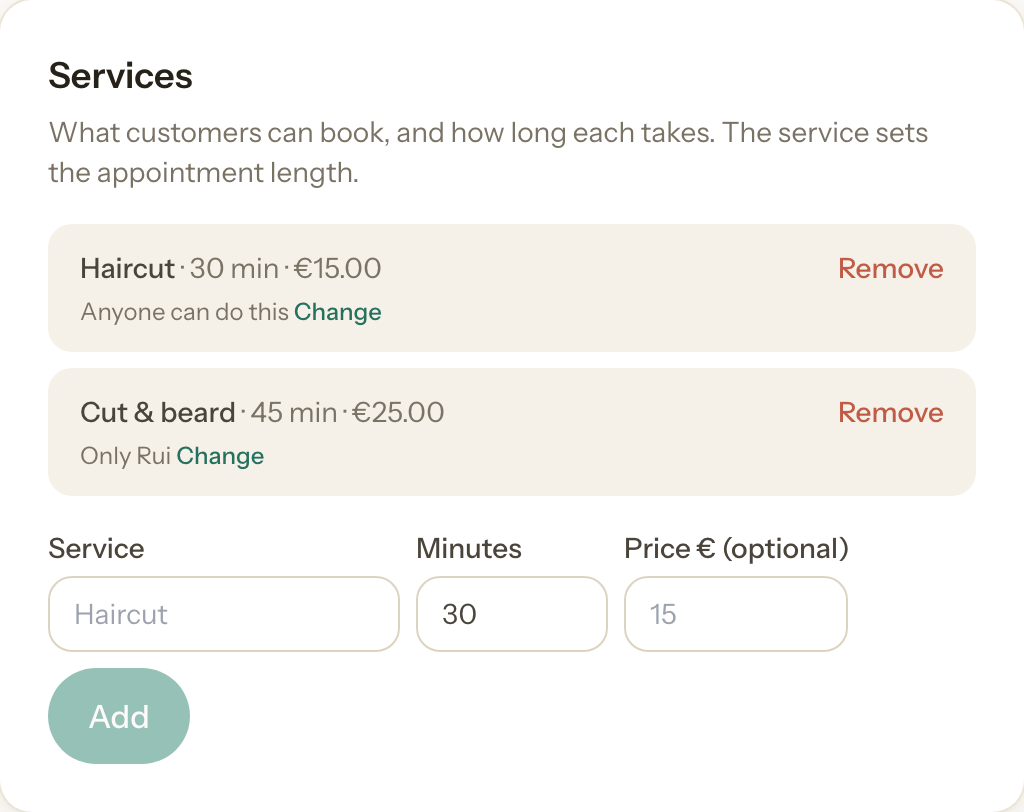
Price is optional. If you add one it shows on the booking page; leave it blank and it simply doesn't appear.
Step 3: Add your staff, with a photo
Under Staff, add whoever takes appointments. Give each person a photo if you can. Customers recognise a face faster than a name, and it makes the booking page feel like your shop.
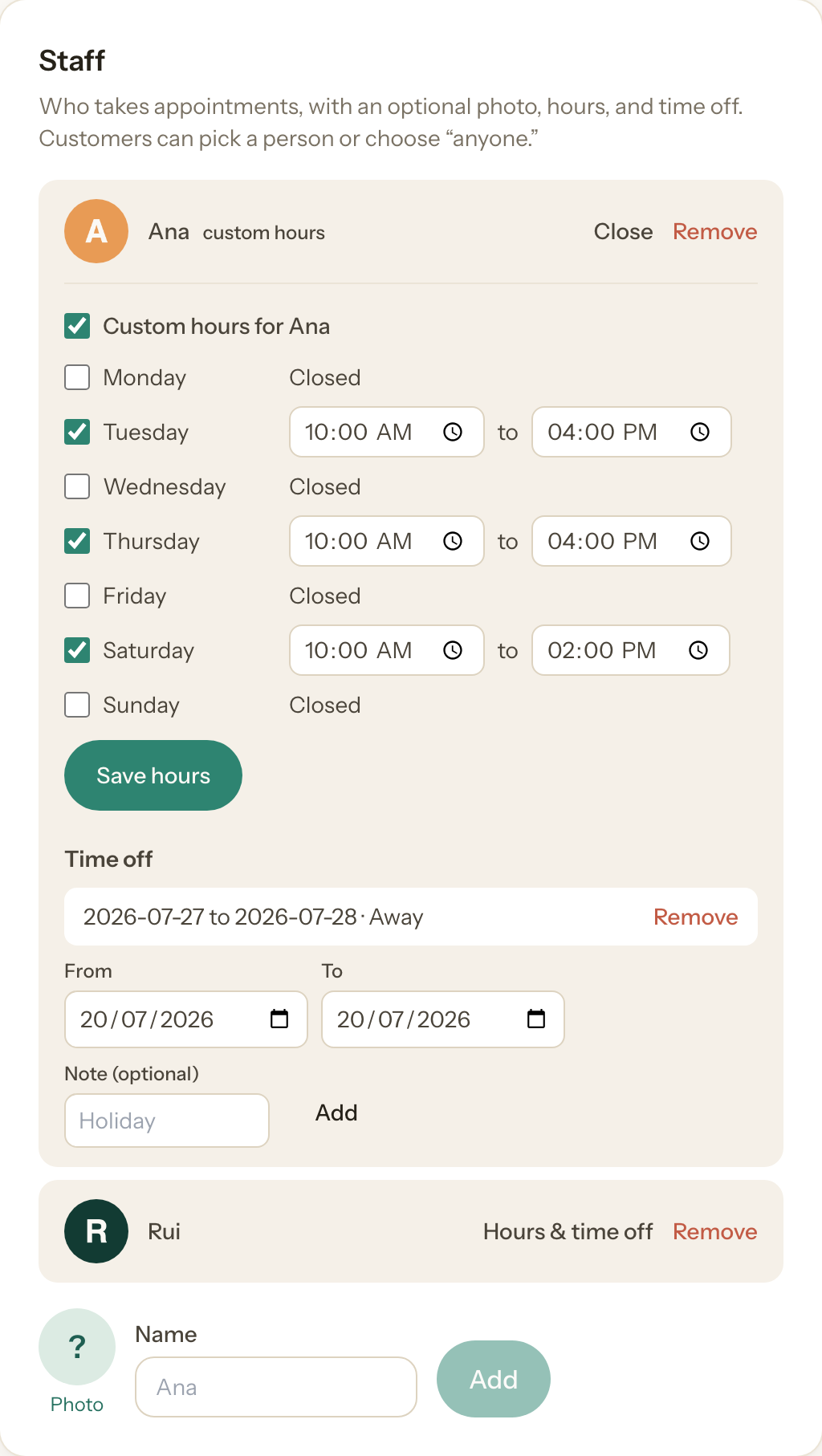
This is also where the flexible stuff lives, tucked behind Hours & time off on each person, so it stays out of your way until you want it:
- Custom hours let one person work different days or shorter days than the shop. In the shot above, Ana only takes appointments Tuesday, Thursday, and Saturday. Leave this off and the person just follows the shop's booking hours.
- Time off blocks out holidays or a day away. Those dates simply stop showing as available for that person.
If you don't need any of that, skip it. The basic "add a name and a photo" is all most shops touch.
Step 4: What your customers see
Here's the booking page a customer lands on. They pick a service, choose a person (or Anyone), pick a day, and tap a time. Slots that are already taken, outside a person's hours, or during their time off simply aren't offered.
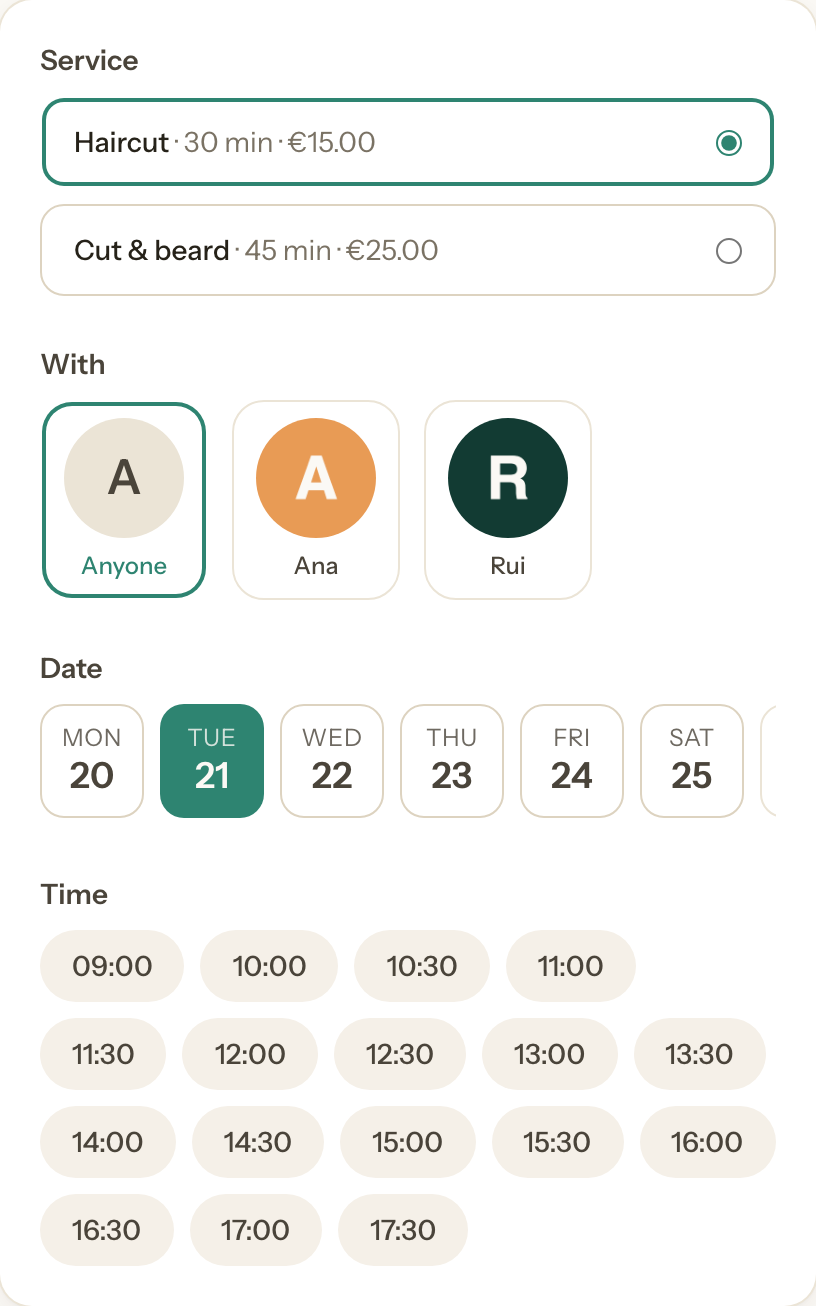
They add their name and email, and that's the booking. They get an emailed confirmation straight away, plus a reminder before the day, and their own page where they can check the details or cancel.
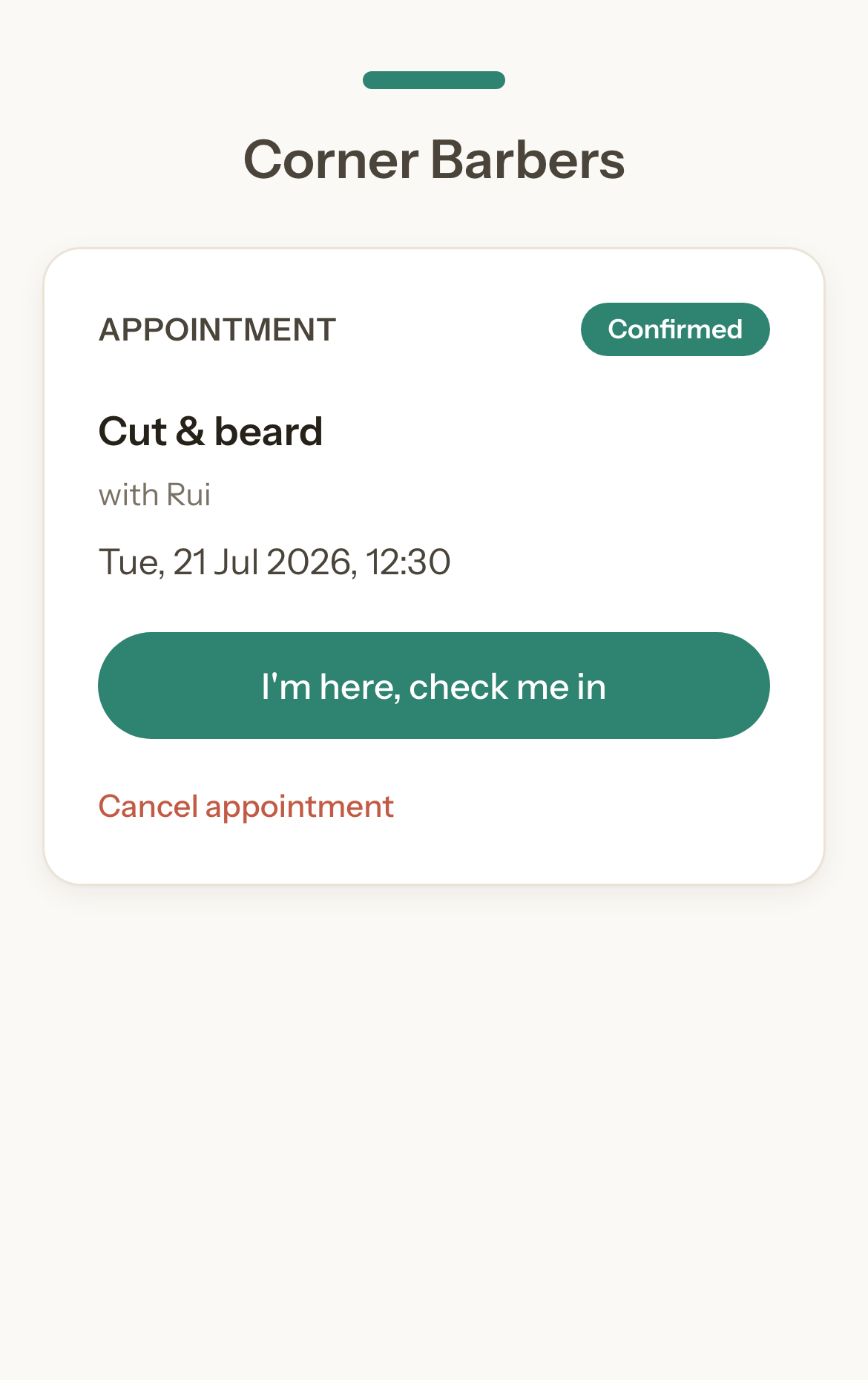
Step 5: On the day, check them in
Your bookings live under Appointments in the dashboard, grouped by day. When someone arrives, tap Check in. You can also mark a no-show or cancel from here.
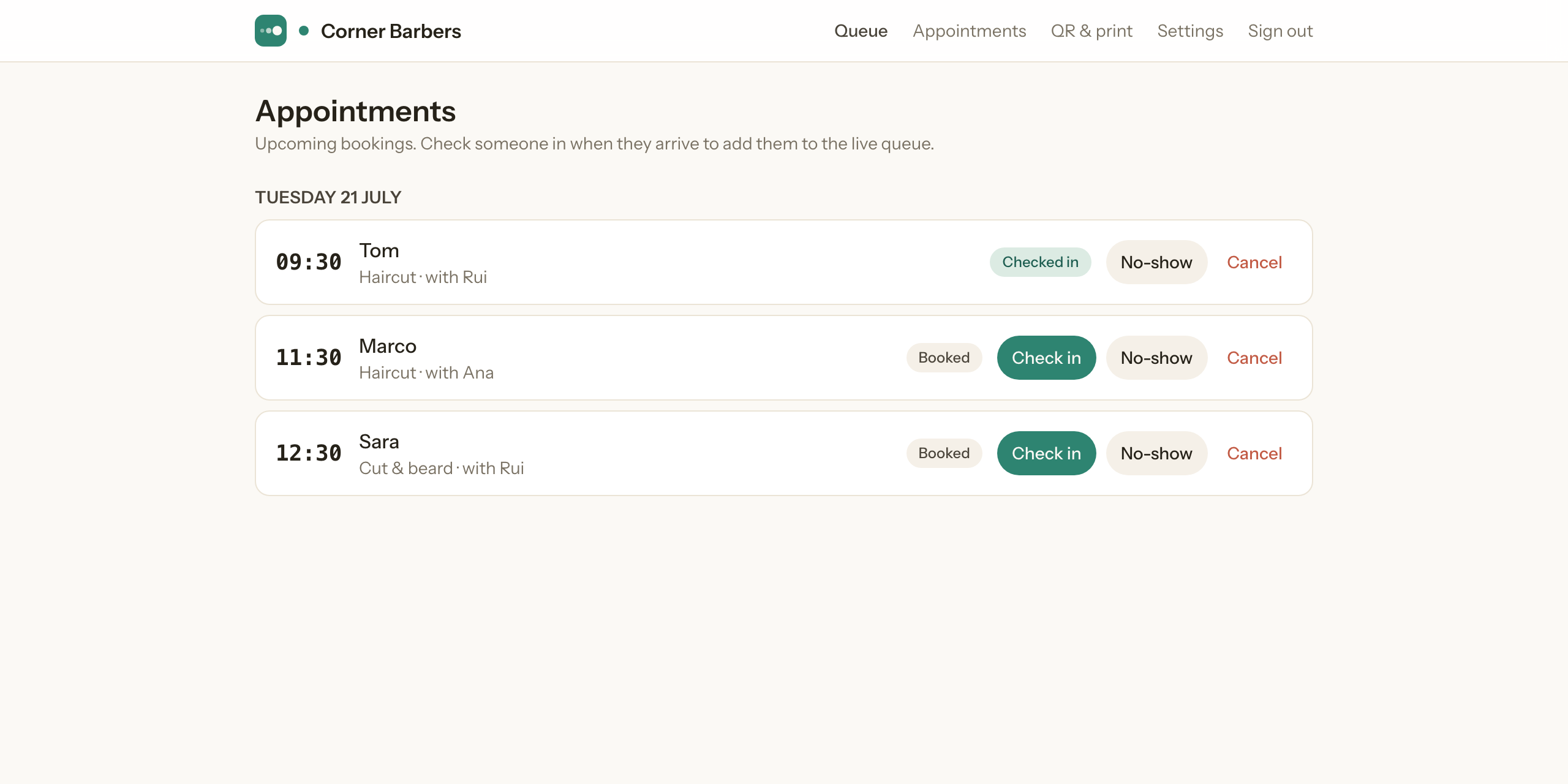
The part that makes it work: one queue
This is the bit I wish I'd had years ago. Checking someone in doesn't open a second screen. It drops them straight into your normal live queue, flagged with their time and who they're seeing, and sorted ahead of the walk-ins who arrived after them.
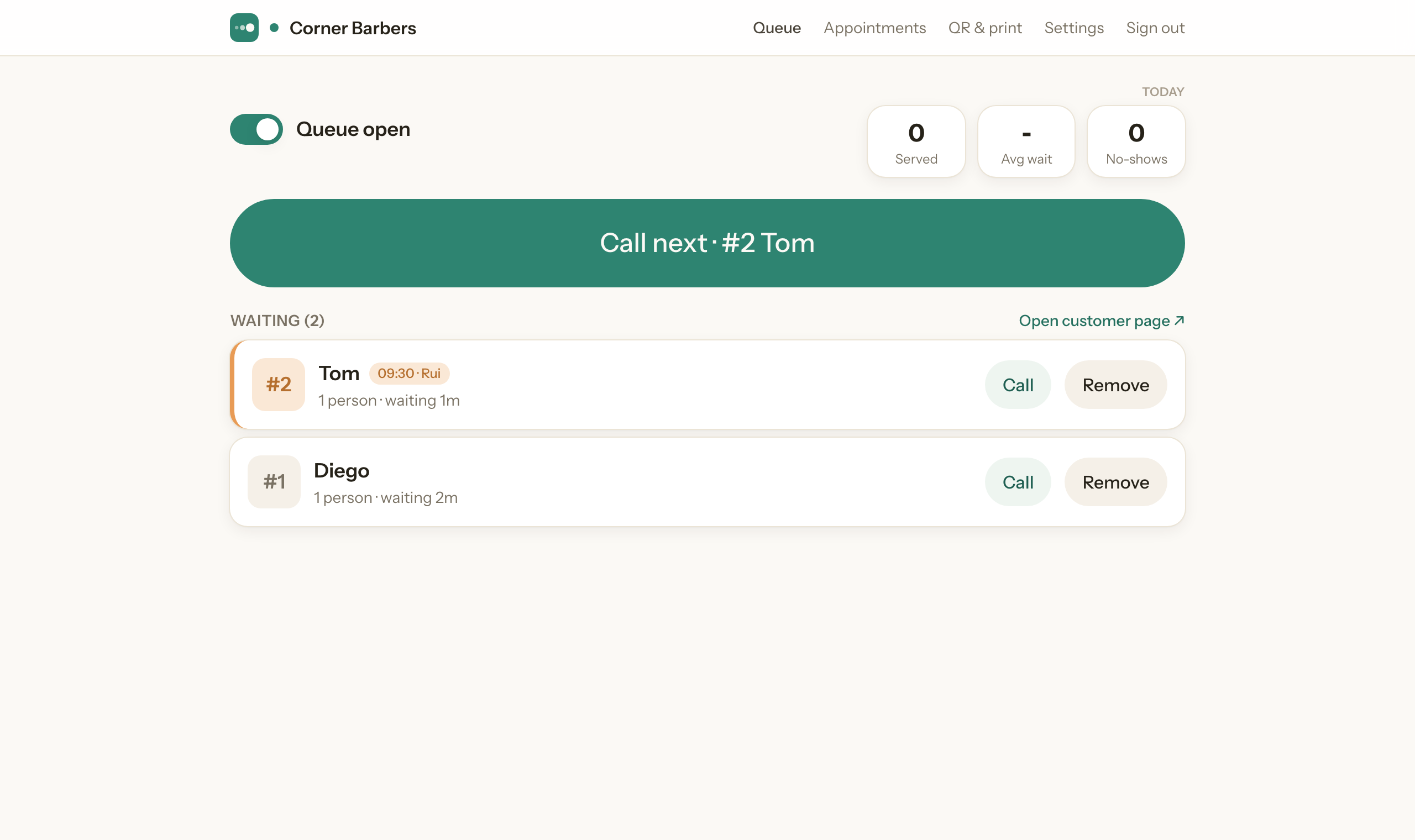
So on the day you run one screen, not two. Tom booked ahead and Diego walked in, and they're both just people in the line now. You call the next person and get back to work.
Advanced: when one person does one thing
Clinics and multi-service shops often need a service done by a specific person, not just anyone. Under each service there's an "Anyone can do this · Change" line. Switch it to Only specific staff and pick who, and that service will only ever offer those people (for example, a treatment only one practitioner is trained for). Every service defaults to "anyone," so this only appears when you go looking for it.
That's the whole thing
Turn it on, add your services and staff, and you're taking bookings that flow into the same queue as your walk-ins. Start simple. The per-person hours, time off, and service rules are there the day you need them, and invisible until then.
You can set your shop up here and have appointments live before your next shift.
Azeem runs a walk-in barbershop and built filaro, a QR queue and booking tool for small shops, so bookings and walk-ins finally live in one place.