How to handle walk-in busy days (and set up a QR queue in minutes)
A practical, step-by-step guide to surviving your busiest walk-in days, plus exactly how to set up filaro.app for your shop, with a screenshot of every step.
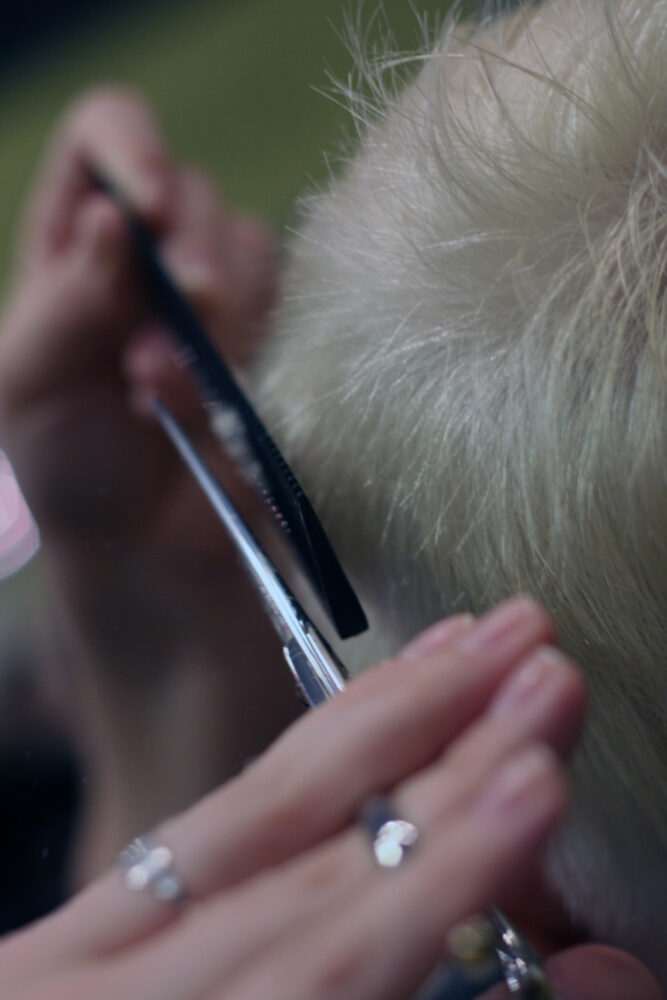
Every walk-in business has that stretch. For my barbershop it is Saturday, roughly 9am to 2pm, when the door doesn't stop and I am cutting with one eye on a growing clump of people by the mirror. If you run a café, a nail bar, a phone-repair counter, or any shop where people just show up, you know the feeling.
This guide has two parts. First, a few habits that genuinely make busy days calmer, whatever tools you use. Then a step-by-step walkthrough of setting up filaro for your shop, with a screenshot of every step, so you can put a proper queue in place this afternoon.
Part 1: five habits for calmer busy days
None of these need software. They are just the things I wish someone had told me earlier.
- Give people a number, not a guess. The single biggest source of tension is uncertainty. "About 40 minutes" invites an argument. "You're number 7, here is your ticket" ends it.
- Let people leave and come back. A packed waiting area feels chaotic and puts customers on edge. If someone can grab a coffee and return without losing their place, your shop breathes.
- Protect the person in the chair. Every interruption to answer "how long?" is time stolen from the customer you are actually serving. Anything that reduces those questions pays for itself.
- Make the wait visible. When everyone can see the same live list, the fairness argument disappears. Nobody can jump the line, and nobody thinks they were skipped.
- Keep one clear next action. On a busy day you should never have to think about who is next. You should just tap "next" and get back to work.
A paper list gets you part of the way. The trouble is that paper is a snapshot: it does not update when someone leaves, it cannot show a live position, and it still needs you to manage every entry by hand. That is the gap a QR queue fills, so let me show you how to set one up.
Part 2: setting up filaro, step by step
The whole thing takes about ten minutes. You need nothing but a phone or tablet and a printer.
Step 1: Create your shop
Go to filaro.app and choose "Create your shop." You give it a name, pick your public link (this is what your QR code will open), and set your country, language, and timezone. The timezone matters because it is how filaro resets ticket numbers and daily stats each morning.
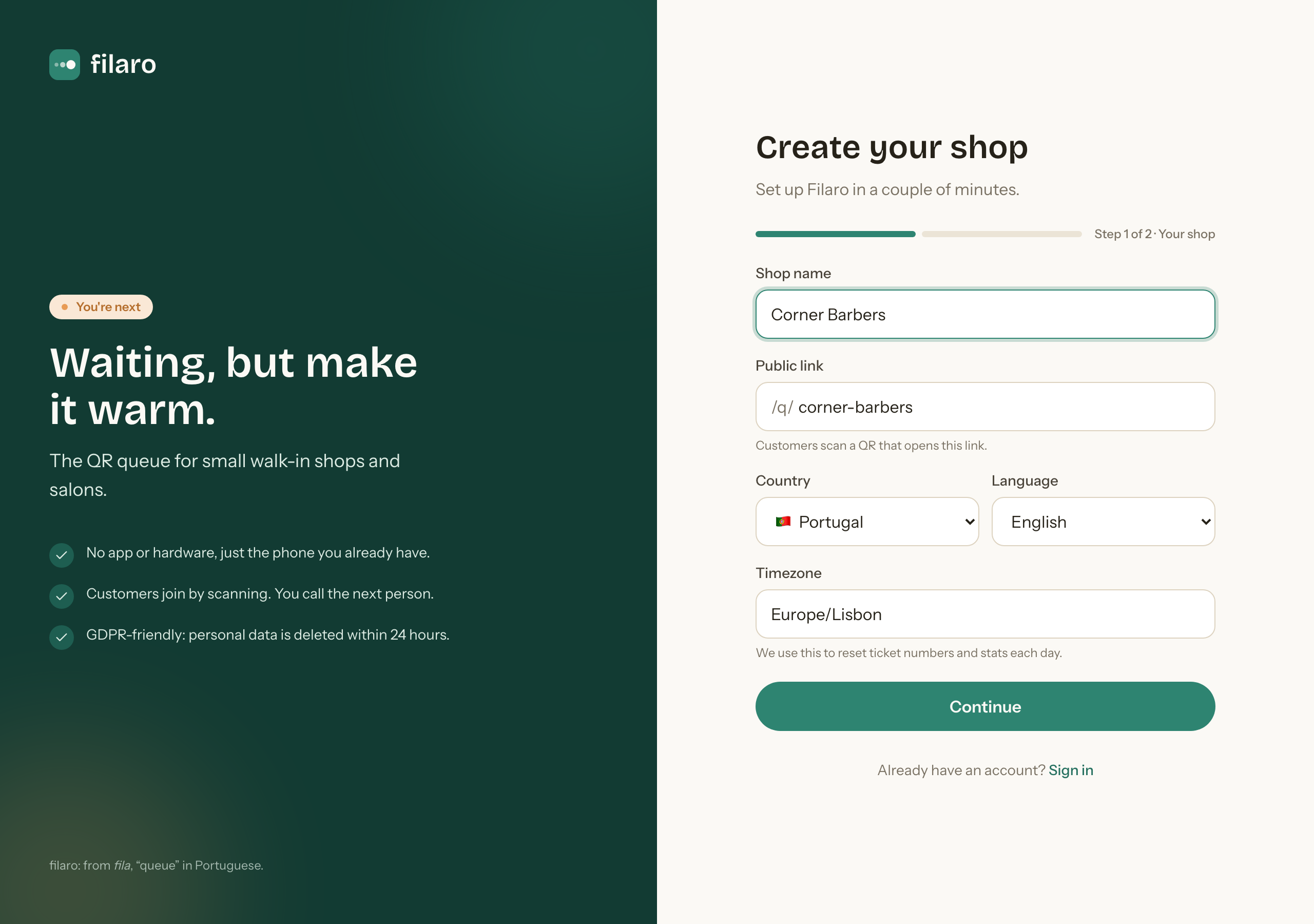
On the next screen you add your email and a password, and that is your account made. No card, no app, no setup call.
Step 2: Print your QR code
Once you are in, open QR & print. filaro gives you your shop's QR code and a print-ready PDF: an A4 sheet with a fold-in-half table tent and a cut-out sticker, already styled in your brand colour and language.
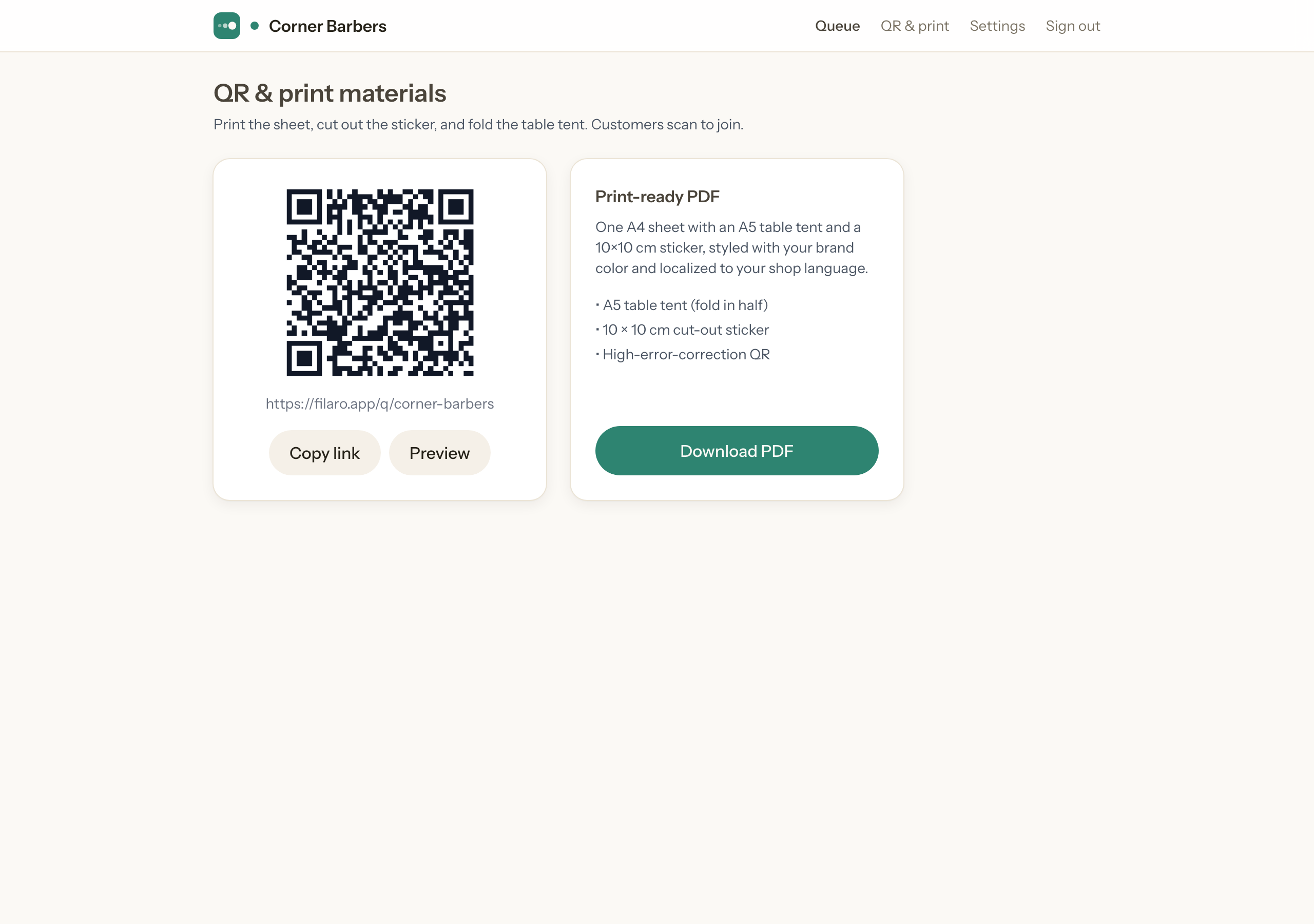
Print it, then put the code where people actually look. Mine lives on the mirror by the door and on a small table tent by the till. Add one line of text next to it: "Scan to join the queue." That sentence roughly doubles how many people use it.
Step 3: Open your queue and call people
This is your command centre. Flip Queue open when you start the day. As customers join, they appear in order, and the big button up top always tells you who is next. When a chair frees up, you tap Call next, and that person is notified it is their turn. That is the whole job: serve, tap, repeat.
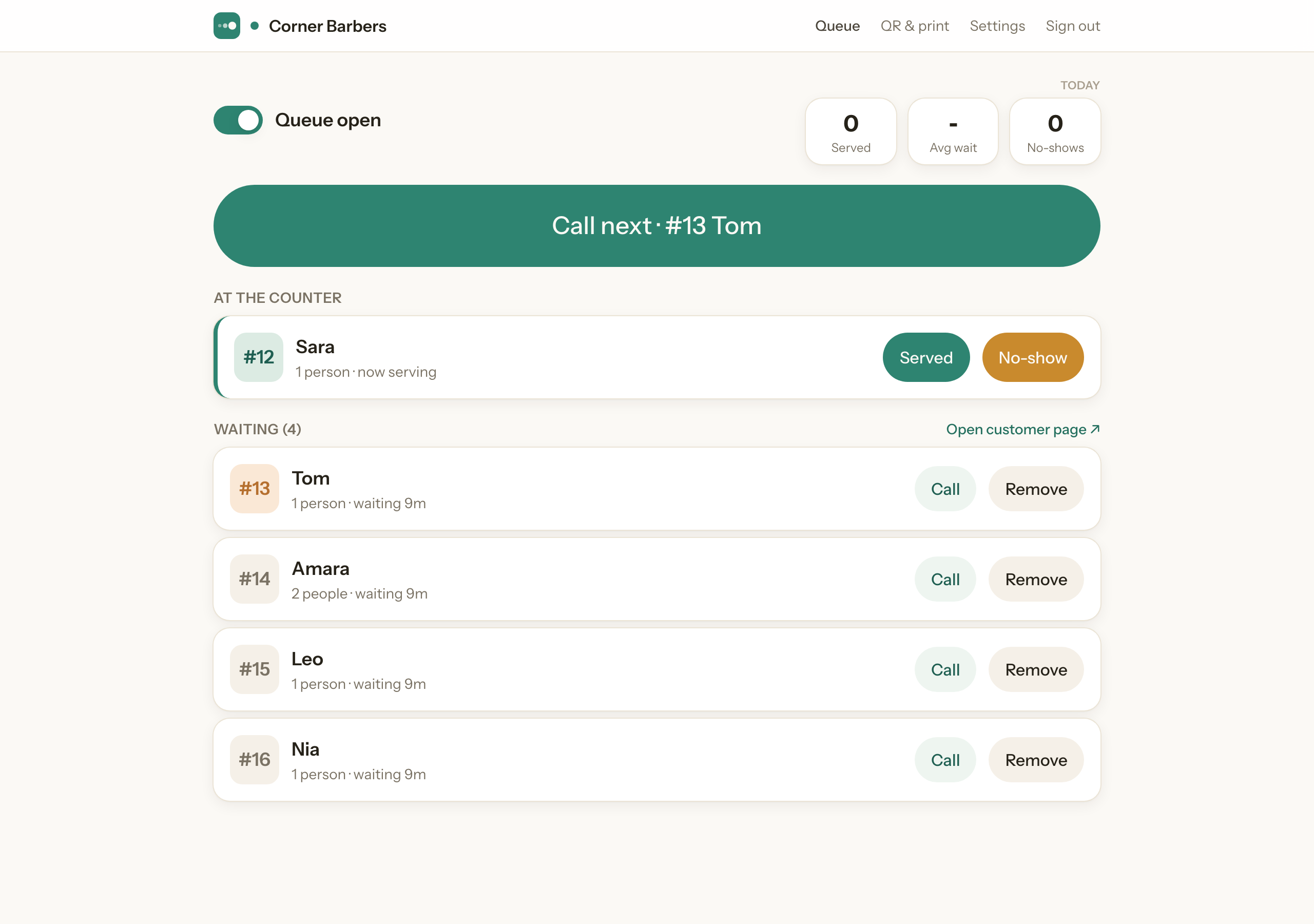
You can also mark someone as served, flag a no-show, or call a specific person out of order if you need to. But on a normal rush, you will only ever touch one button.
Step 4: What your customers see
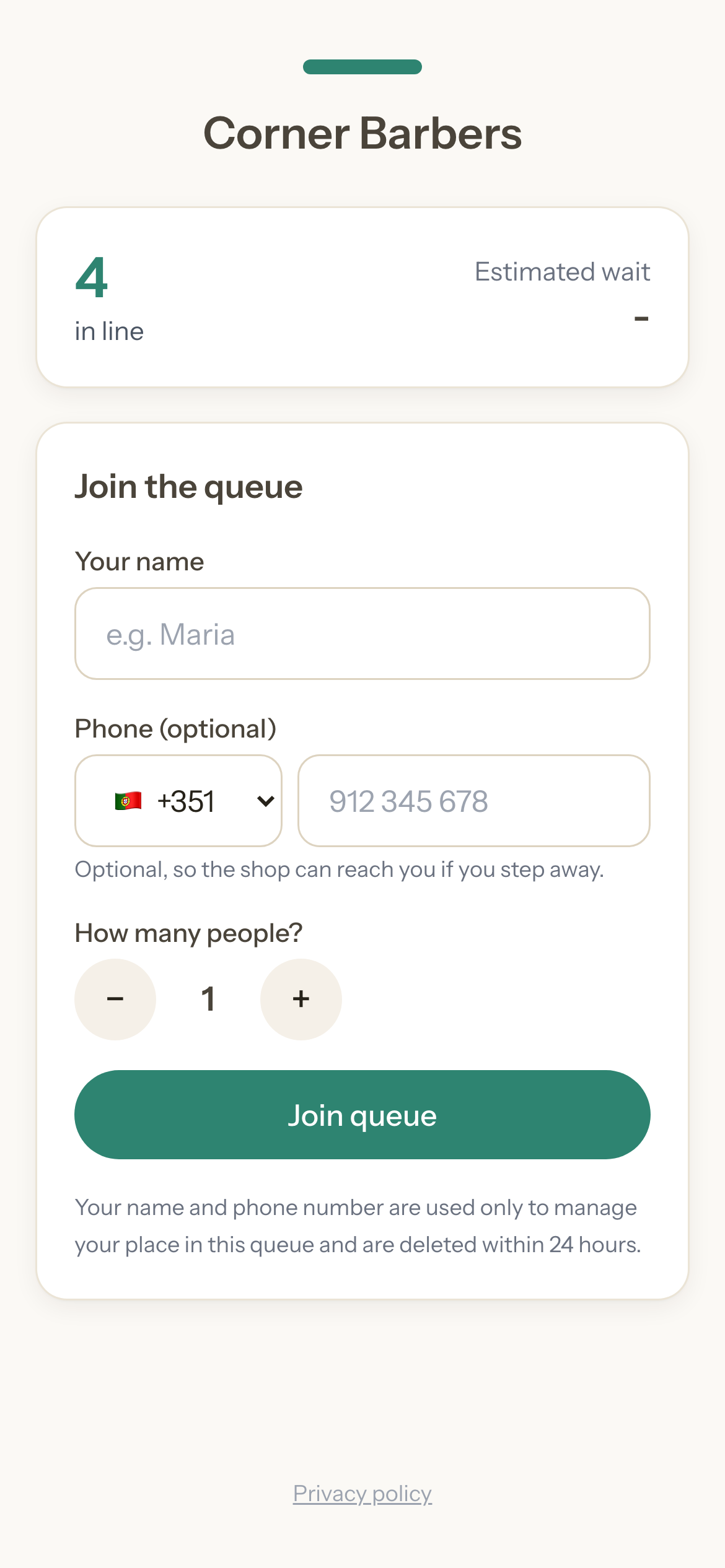
Here is the other half, on your customer's phone. When they scan the code, they see your shop, how many people are in line, and a simple "Join the queue" form. Name is enough. A phone number is optional, in case you want to reach them if they wander off.
Once they join, they get their own live screen with their number and how many people are ahead. It updates on its own, so they can step outside and keep an eye on it without guarding a seat.
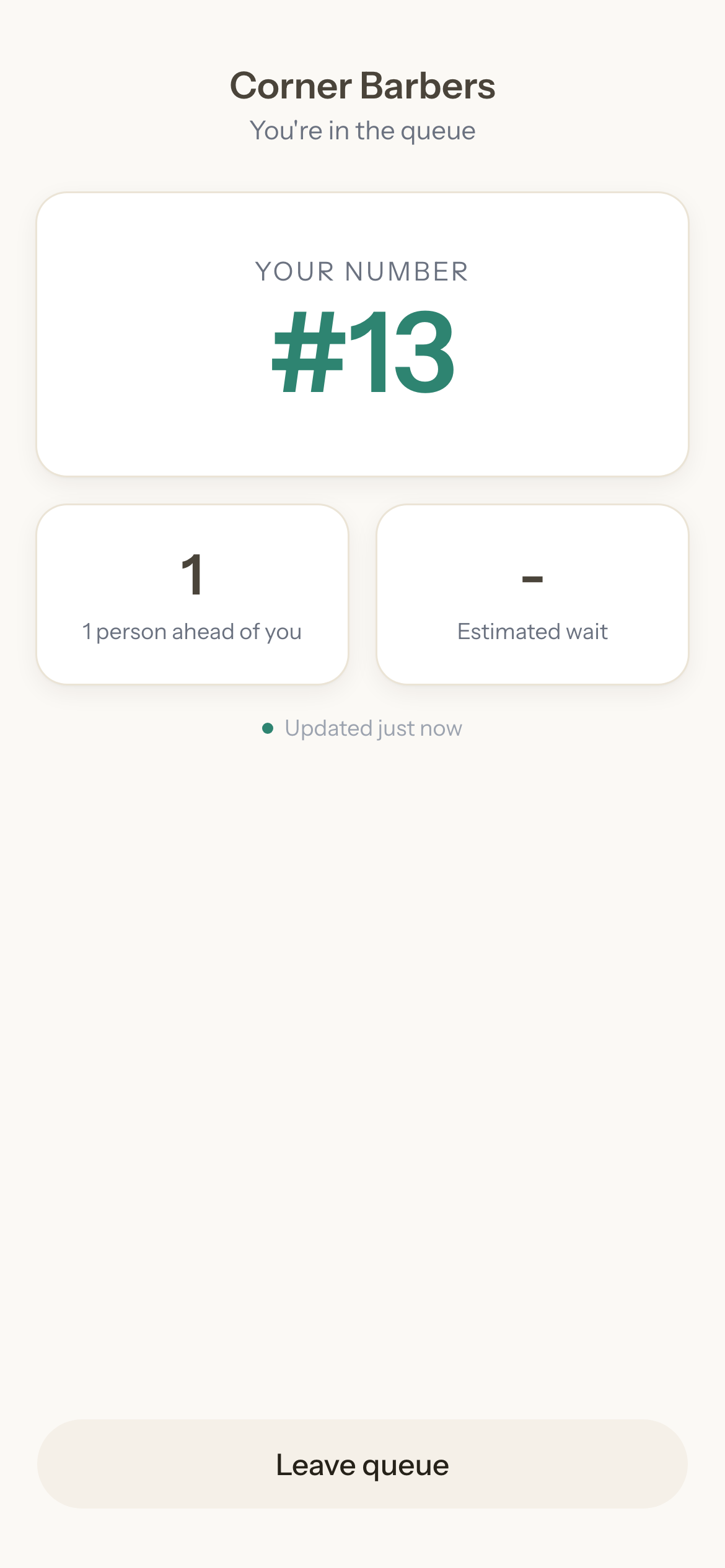
Notice there is nothing to install. It all runs in the phone's browser, which is exactly why walk-in customers actually use it.
Step 5 (optional): Put a board on your TV
If you have a spare TV or tablet, this is the finishing touch. In Settings → Display screen, create a display link.
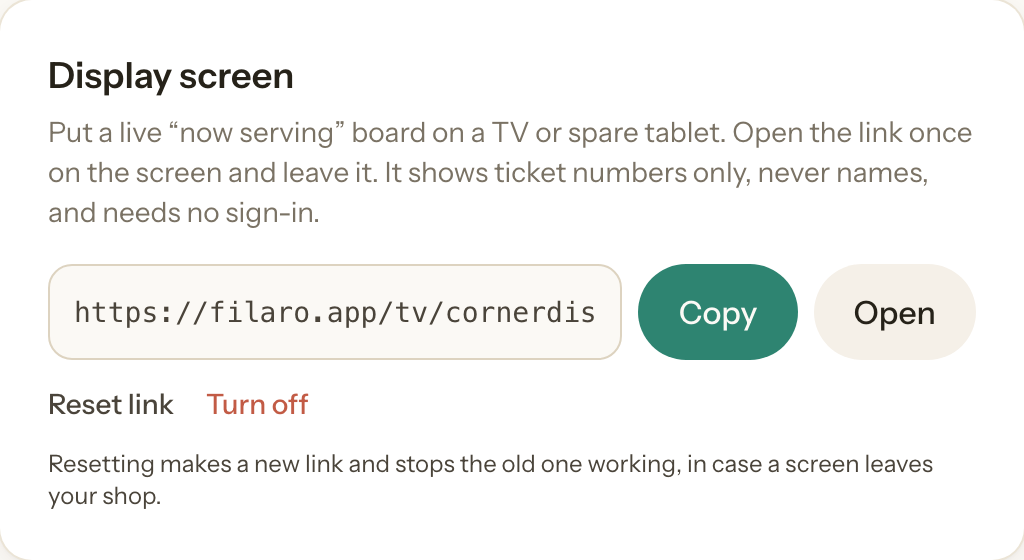
Open that link once on the screen and leave it. You get a live "now serving" board, ticket numbers only, no names, no sign-in. It updates itself as you call people.
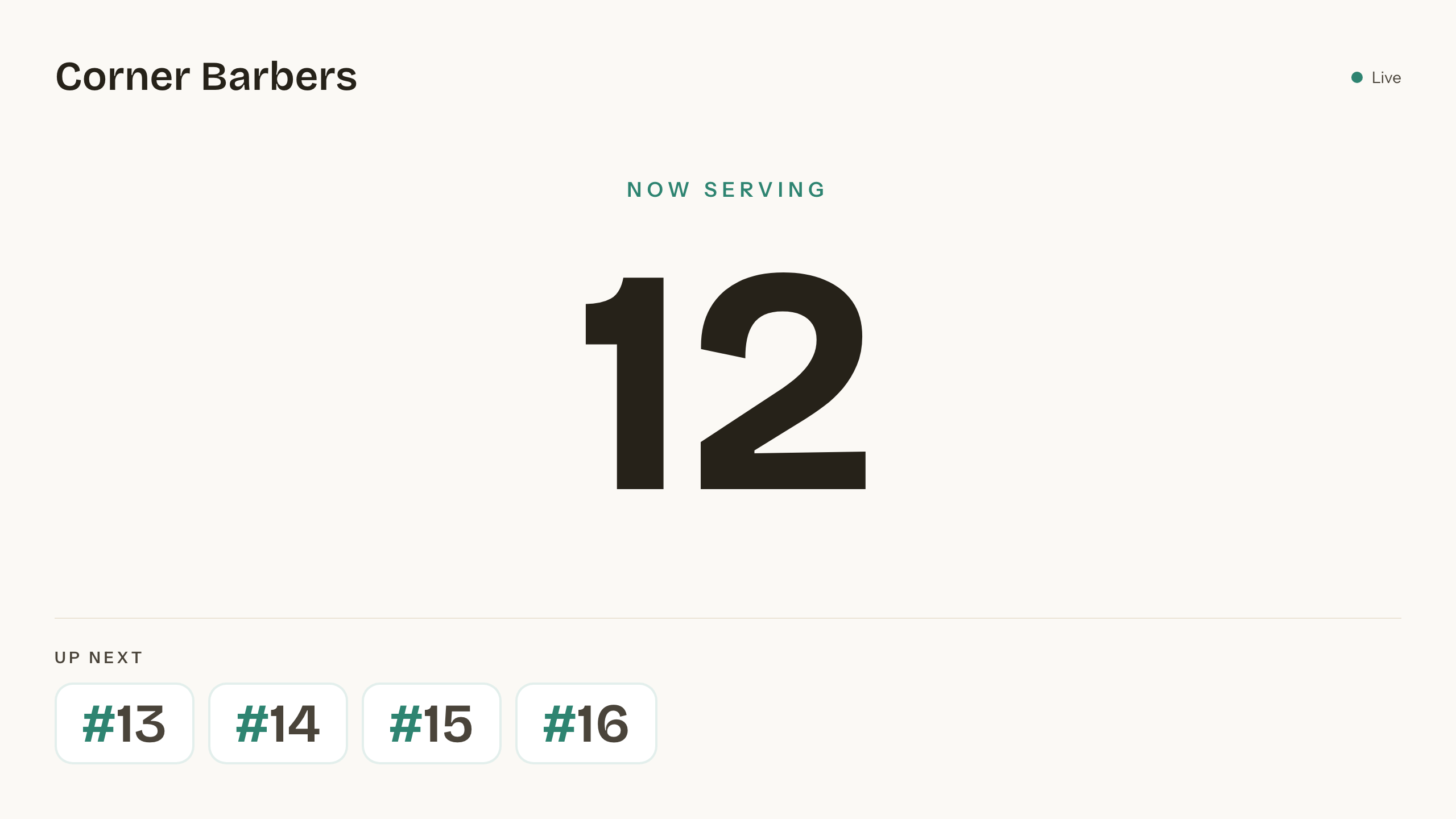
Customers can now check their place from across the room without asking you a thing. The link is private and you can reset or turn it off any time, so it is safe to hand out.
That's the whole setup
Create your shop, print the code, open the queue, and work the "next" button. The busy-day habits from Part 1 do the rest: everyone has a number, everyone can see the line, and you get to keep your hands on the work instead of refereeing the door.
It genuinely gave me my Saturdays back. If your busy hours look anything like mine, spend the ten minutes. You can create your shop here and have it running before your next rush.
Azeem runs a walk-in barbershop and built filaro, a QR queue for small businesses, after one too many chaotic Saturdays.